
When Is the Form Required?
For any software or software subscription purchase for:
- data storage
- software-as-a-service that the UW does not already have a license for (cloud-based software like Monday.com)
- web-based application
- generative AI*
*Generative AI products create new content such as text, images, audio or code based on patterns learned from existing data.
When Should You Complete the Form?
Before purchasing the software or service.
Who Should Complete the Form?
The person who wants to use the software or service.
The Process
- Complete and submit the form.
- CALS IT will review the submitted data.
- CALS IT will make a decision on the purchase:
- If they approve it, they will email you an approval.
- If they reject it, they will email you and explain the rejection.
- Print the approval email to a PDF and upload it to Workday as documentation for the following:
- requisition
- supplier invoice
- expense report
When Will I Receive a Response?
After filling out the form, expect to receive an initial response within 3 business days that an analyst has been assigned to review your request.
Review times vary based on risk factors; and it can take several weeks to receive a final response. Please plan accordingly.
Who Do I Contact With Questions About the Form?
Contact Jason Pursian, CALS Information Security Officer at:
jason.pursian@wisc.edu
How to Access and Complete the Form
- Open this link in the browser you usually use to access your UW Google account (not your personal one):
https://app.smartsheet.com/b/form/d8447a2615b64743993c7c4b3fb1c196 - A Smartsheet login screen appears:
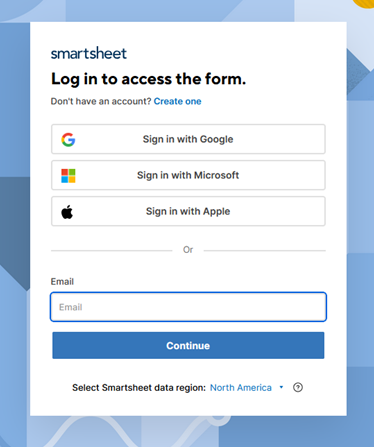
- Click the Sign in with Google button.
- A Sign in with Google screen appears:
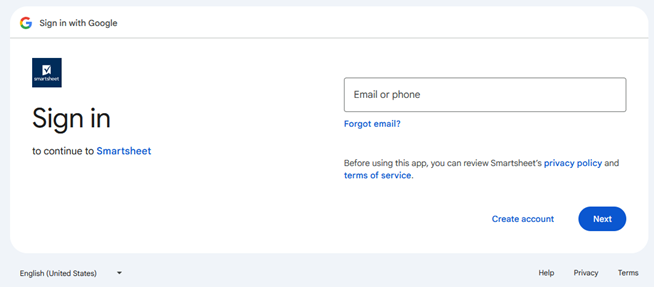
- In the Email or phone box, enter your UW email address:
Example: bbadger@wisc.edu - A UW screen appears.
- If you logged in previously and your login hasn’t expired, it will show your NetID. Click your NetID.
- If your login has expired, it will ask you to login with your NetID and password. Login with your NetID and password.
- The CALS Risk Review Intake Form appears:
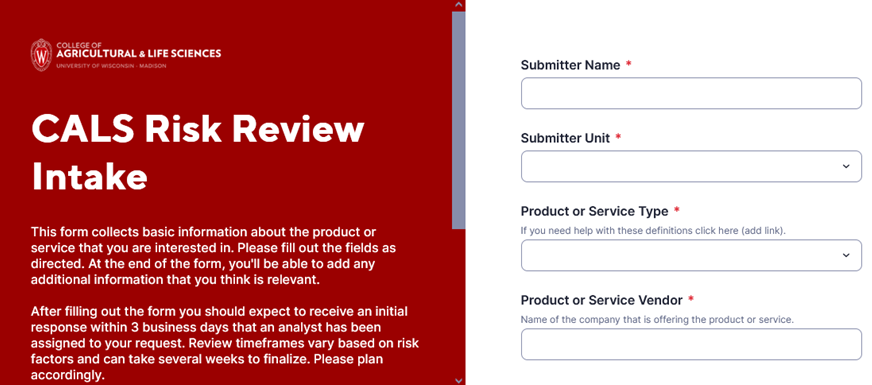
- Complete the form.
- At the bottom of the form, click the checkbox “Send me a copy of my responses.”
- Click Submit.